

This article is a localized edition of the Japanese original. Read the Japanese original
Using nmap comes down to this: run it with the host to scan, the ports to check, and the scan method, then read the state of each port (open / closed / filtered). If your server runs WordPress, a single run of nmap -sV -p- your-server tells you whether the only services visible from outside are on 22, 80 and 443, and whether your database or PHP-FPM is exposed.
Here is the short version.
- Use nmap only on servers you manage, or servers you have written permission to scan. Scanning someone else's server can violate terms of service or create legal trouble.
- For routine checks, one line is enough:
nmap -sV -p- <your-server>. It scans every TCP port and identifies the name and version of the service running on each open port. - On a WordPress server, the only ports that normally need to be open to the outside are 22 (SSH, ideally restricted by IP), 80 and 443. If 3306 (MySQL / MariaDB), 9000 (PHP-FPM), 6379 (Redis) or 11211 (Memcached) show as open, close them right away.
- How to read the results (the difference between filtered and closed, when you need
-Pn, and how to save and diff results) continues in How to read nmap scan results.
What is nmap?
nmap (Network Mapper) is a free tool that checks which ports are open on hosts on a network and what services are running on them. It runs on Linux, macOS and Windows, and the basic command form is:
nmap [scan type] [options] targetThe target is a hostname or an IP address. With no other options, nmap scans the 1,000 most commonly used TCP ports.
Before you start: scan only servers you are allowed to scan
The nmap manual notes that the legality of scanning varies by country and jurisdiction, and that some people have had their connection cut off for violating their provider's terms of service. It recommends getting written permission from the target's administrator. Every step in this article assumes you are checking a server that you rent or manage yourself. On cloud platforms and VPS services, the provider's terms may require you to notify them even when you scan your own server, so check the terms of service. For practice, the nmap project allows scanning scanme.nmap.org (up to about a dozen times a day).
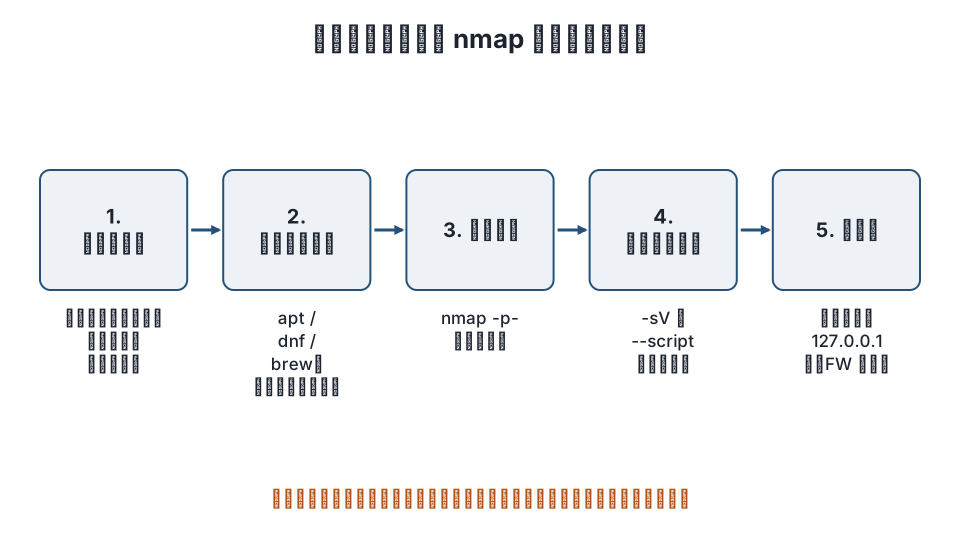
Step 1: Install nmap
# Debian / Ubuntu
sudo apt install nmap

# RHEL family (AlmaLinux / Rocky Linux)
sudo dnf install nmap

# macOS (Homebrew)
brew install nmap
On Windows, get the installer from the nmap.org download page. It also includes Zenmap, the GUI.
Run the scan from outside the server. If you run nmap localhost on the server itself, ports that the firewall blocks from the outside will still show as open. Use your home or office PC, or another server.
Step 2: Scan all TCP ports
The default 1,000 ports can miss admin ports such as 8443 or 10000. When checking your own server, scan every port (1-65535).
nmap -p- example.com-p- means "all ports." To narrow the range, write -p 22,80,443 or -p 1-1024. Depending on the network and how the firewall responds, a scan takes anywhere from tens of seconds to more than ten minutes.
Without administrator privileges, the default is a TCP connect scan (-sT); with sudo, the default is a SYN scan (-sS). The results mean the same thing either way. The SYN scan is faster and leaves fewer connections in the server's logs. For your own server, -sT is fine.
To check UDP services (DNS on 53, VPN on 500 / 4500, and so on), use -sU. UDP often gets no response and takes a long time, so limit the ports.
sudo nmap -sU -p 53,123,500,4500 example.comStep 3: Detect services and versions
To find out what is running on each open port, add -sV. nmap connects to each port, matches the responses, and identifies the service name and version.
nmap -sV -p- example.comExample output:
PORT     STATE SERVICE  VERSION
22/tcp   open  ssh      OpenSSH 9.6p1 Ubuntu 3ubuntu13 (Ubuntu Linux; protocol 2.0)
80/tcp   open  http     nginx 1.26.0
443/tcp  open  ssl/http nginx 1.26.0
If 3306 or 9000 shows up as open here, your database or PHP-FPM is exposed to the outside. WordPress only needs connections within the same server, so switch to bind-address = 127.0.0.1 (MySQL / MariaDB) or a Unix socket (PHP-FPM), and close the port in the firewall too.
OS detection is -O, and -A combines both (-A takes longer and produces more output).
Step 4: Check web exposure with NSE scripts
nmap ships with scripts written in Lua (NSE: Nmap Scripting Engine), which you select with --script. These are the useful ones for a WordPress server.
| Script | What it tells you |
|---|---|
http-php-version |
Whether the PHP version can be determined from outside (from the X-Powered-By response header and so on). It also tries special responses of old PHP versions |
http-headers |
A list of response headers. Check whether Server or X-Powered-By reveals a version |
http-title |
The page title. Confirms which site is responding on which port |
ssl-cert |
The certificate's issuer and expiry date |
ssl-enum-ciphers |
TLS versions and cipher suites. Shows whether old TLS 1.0 / 1.1 is still enabled |
nmap -sV -p 80,443 --script http-php-version,http-headers,ssl-cert example.comAs the http-php-version documentation states (as of November 2026), PHP versions after 5.5.0 do not respond to the special queries this script uses. Even so, it still finds configurations that return the version in a header, such as X-Powered-By: PHP/8.3.x (expose_php = On). Hide the version together with the steps in How to hide WordPress version information.
You can also pass category names to --script. When checking your own server, stay within the default and safe categories, and do not run scripts in the intrusive, exploit or dos categories against a production server. They can cause load or take services down.
Step 5: Ports that may be open on a WordPress server
Compare your scan results with the table below.
| Port | Service | OK to be open to the outside? |
|---|---|---|
| 22/tcp | SSH | Preferably restricted to administrators' IPs. Use key authentication |
| 80/tcp | HTTP | Yes (redirect to HTTPS) |
| 443/tcp | HTTPS | Yes |
| 21/tcp | FTP | Not recommended. Switch to SFTP (22) |
| 25/tcp | SMTP | Not needed if the server only sends mail. Close it unless the server receives mail |
| 3306/tcp | MySQL / MariaDB | Close it. Listen on 127.0.0.1 only |
| 9000/tcp | PHP-FPM | Close it. Limit it to a Unix socket or 127.0.0.1 |
| 6379 / 11211 | Redis / Memcached | Close them. Exposing them without authentication leads to data leaks |
| 8080 / 8443 / 10000 | Alternate HTTP, admin panels | Only the ones you need. Add IP restrictions or Basic authentication |
If an unneeded port is open, first change the service's listen address to 127.0.0.1 in its configuration, then close it in the firewall (ufw / firewalld, or a security group or NSG in the cloud), and run nmap again to confirm. Closing ports and saving and diffing rescan results continue in How to read nmap scan results and what to watch for.
Where this fits in running WordPress
Port checks are most useful right after you set up a server, right after you move to a new server, and right after you add plugins or middleware (Redis, Elasticsearch and so on). This is a separate layer from protecting the admin screen (login attempt limits, two-factor authentication): the goal here is to reduce the entry points reachable from outside in the first place.
On shared hosting, the hosting company controls which ports are open, and you cannot change them. This article covers environments you manage yourself: VPS, dedicated servers and the cloud.
FAQ
Is it a problem to use nmap even on my own server?
Scanning a server you rent or manage is generally fine. However, some cloud and VPS providers' terms of service require you to notify them before penetration testing. Check the terms and apply in advance if needed. Do not use nmap on other people's servers or on servers whose administrators have not given permission.
The scan takes too long
Scanning all ports with -p- takes longer when the firewall is set to drop packets without responding. Get an overview first with the default 1,000 ports (no options) or -F (top 100 ports), then specify only the range you need with -p. You can speed up timing with -T4, but for production servers it is safer to keep the default -T3.
Can I run nmap localhost from inside the server?
You can, but it does not show how the server looks from outside. Ports blocked by the firewall still appear open from localhost. Check what is publicly reachable from a different machine.
http-php-version shows nothing
PHP versions after 5.5 do not respond to the queries this script uses, so if the headers do not reveal a version, the result is empty. That is the desired state: the version cannot be determined from outside.
Can nmap also list my WordPress plugins?
There are scripts such as http-wordpress-enum, but they send a large number of requests to the target site. Even on your own site this adds load, so check plugins from the WordPress admin screen or with WP-CLI (wp plugin list) instead.
Summary
- Use nmap as a tool for checking the entry points of servers you manage, and never on other people's servers.
- For routine checks, run
nmap -sV -p- <server>from an external machine. On WordPress, if anything other than 22, 80 and 443 is open, change its listen address to 127.0.0.1 and close it in the firewall. - Use
--script http-php-version,http-headers,ssl-certto check for PHP and certificate exposure. Reading the results and diffing them are covered in the follow-up article.
Related articles
- How to read nmap scan results: what open, closed and filtered mean, and which ports to close on a WordPress server
- How to hide WordPress version information
- How to detect unauthorized access to your server
- How to keep WordPress wp-config.php secure
References: Nmap Reference Guide – Options Summary, Port Scanning Basics (definitions of port states), Legal Issues (legality of scanning and permission), NSE script http-php-version
Revision history: 2026-11-09 full revision (replaced the boilerplate body with steps for checking your own server's public ports, service detection and NSE scripts, and a table of ports that may be open on a WordPress server). This article is published by WordPress Hakase (Lightscend Co., Ltd.).
Questions about WordPress? The publisher of this site is based in Japan and replies in Japanese. Contact (Japanese)