
2026年11月13日

This article is a localized edition of the Japanese original. Read the Japanese original
To detect file tampering with Tripwire, you write the directories to watch and the attributes to check in a policy file, build a baseline database, and then regularly compare the current state against it. On a WordPress server, the key is to register the core, theme and plugin PHP files as "things that should not change" and to exclude places that change every day, such as the image upload folder and caches.
Here is the short version first.
- Tripwire compares a "record of the known-good state" with "the current state" and reports the differences. It does not detect or remove malware. You use it to shorten the time it takes to notice tampering.
- Setup has five stages: install → create the keys (site key / local key) → edit the policy → build the baseline database with
tripwire --init→ runtripwire --checkon a schedule. - When files change legitimately because you updated WordPress or a plugin, update the baseline with
tripwire --update. If you skip this, the report fills up with "changed" entries and real tampering gets buried. - You edit the policy in
/etc/tripwire/twpol.txtand convert it into the signedtw.polwithtwadmin --create-polfilebefore use.
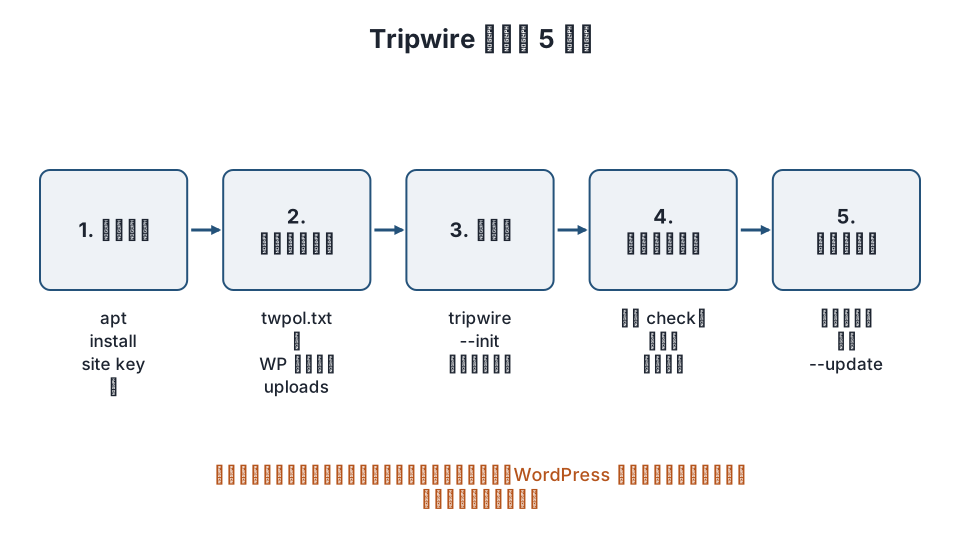
What Tripwire is
Tripwire is File Integrity Monitoring software: it records the attributes of files and directories (hash values, size, permissions, owner, modification time and so on), collects the same attributes again later, and finds changes by comparing them. This article covers Open Source Tripwire, distributed as the tripwire package on Debian / Ubuntu and through EPEL on RHEL-based systems (it is a different product from the commercial Tripwire Enterprise).
Another tool with the same purpose is AIDE (Advanced Intrusion Detection Environment). AIDE needs only one plain-text configuration file and has no key management, so it is lighter to set up. Tripwire signs its configuration file, policy, database and reports with keys, which makes it harder for an intruder on the server to rewrite the monitoring setup itself. Whichever you choose, the thinking needed to monitor WordPress (what to watch and what to exclude) is the same.
| Item | Open Source Tripwire | AIDE |
|---|---|---|
| Signing of settings | Signed with the site key / local key | None (protected by file permissions) |
| Configuration files | twcfg.txt and twpol.txt (signed into tw.cfg / tw.pol) |
A single aide.conf |
| Updating the baseline | tripwire --update, applied while reviewing the report |
aide --update builds a new database that you swap in |
| Good fit | Production servers where you also suspect the settings could be tampered with | Quick setup, or when you want to avoid key management |
Step 1: Install and create the keys
On Debian / Ubuntu, install it with apt. During installation you are asked for a site passphrase and a local passphrase. The site key signs the configuration file and the policy; the local key signs the database and reports. You will use the passphrases for later operations every time, so store them in a password manager.
sudo apt update
sudo apt install tripwire
On RHEL-based systems (AlmaLinux / Rocky Linux), enable EPEL before installing, and create the keys with twadmin.
sudo dnf install epel-release
sudo dnf install tripwire
sudo twadmin --generate-keys -S /etc/tripwire/site.key -L /etc/tripwire/local.key
After creating the keys, convert the plain-text configuration file into a signed one (the Debian / Ubuntu package does this for you during installation).
sudo twadmin --create-cfgfile -S /etc/tripwire/site.key /etc/tripwire/twcfg.txtStep 2: Writing the policy file
The policy is written in plain text in /etc/tripwire/twpol.txt. Each rule has the form "target path -> mask of attributes to check;", and if you name a directory, everything below it is covered. Attributes are one-character symbols: + means "check" and - means "do not check". Here are the common ones.
| Symbol | Meaning |
|---|---|
p / u / g |
Permissions / owning user / owning group |
s / t / n |
Size / file type / link count |
m / c / a |
Modification time / inode change time / access time |
i / d / b |
Inode number / device number / blocks used |
C / M / S / H |
CRC-32 / MD5 / SHA / Haval hashes |
Instead of listing symbols every time, you can use predefined variables.
| Variable | Use |
|---|---|
$(ReadOnly) |
Files that should not change. Checks almost every attribute |
$(Dynamic) |
Files whose content is expected to change. Ignores changes in size and times |
$(Growing) |
Files that keep growing, such as logs. Allows the size to increase |
$(IgnoreAll) |
Only checks whether the file exists |
$(IgnoreNone) |
Checks everything. Used by subtracting, as in $(IgnoreNone) -ar |
In parentheses after a rule you can add a name to identify it in reports (rulename), a severity (severity, 0 to 1,000,000), a notification address (emailto) and a depth (recurse). A path prefixed with ! is excluded from monitoring (a stop point).
Example for WordPress
Assuming WordPress lives in /var/www/html, add rules that watch the core, theme and plugin PHP with $(ReadOnly) and exclude the upload folder and caches. Write them as an addition to the default policy.
# WordPress (/var/www/html)
WPROOT = /var/www/html ;

(
  rulename = "WordPress core and code",
  severity = 100,
  emailto  = "admin@example.com"
)
{
  $(WPROOT)/wp-admin            -> $(ReadOnly) ;
  $(WPROOT)/wp-includes         -> $(ReadOnly) ;
  $(WPROOT)/wp-content/themes   -> $(ReadOnly) ;
  $(WPROOT)/wp-content/plugins  -> $(ReadOnly) ;
  $(WPROOT)/wp-config.php       -> $(ReadOnly) ;
  $(WPROOT)/index.php           -> $(ReadOnly) ;
  $(WPROOT)/.htaccess           -> $(ReadOnly) ;

  # Exclude places that change daily (watch them by other means if PHP appears there)
  !$(WPROOT)/wp-content/uploads ;
  !$(WPROOT)/wp-content/cache ;
  !$(WPROOT)/wp-content/upgrade ;
  !$(WPROOT)/wp-content/debug.log ;
}
wp-content/uploads is excluded because adding images would produce a report every day. However, attackers often drop PHP into uploads, so protect it with a web server setting that "forbids PHP execution in uploads" (see the article on file permissions and security).
The default policy on Debian / Ubuntu includes files that do not exist on your server (for example ones for a different init system), and every initialization lists "File system error" entries. Look at the output of your first --init and comment out the lines for missing files with #.
When you have finished the plain-text policy, convert it into the signed tw.pol.
sudo twadmin --create-polfile -S /etc/tripwire/site.key /etc/tripwire/twpol.txtStep 3: Initialize the baseline database
Following the policy, record the current state in the database as the baseline. You are asked for the local passphrase.
sudo tripwire --initThe database is created at /var/lib/tripwire/<hostname>.twd. The files as they are at this moment are recorded as the "correct state", so initialize right after updating WordPress to the latest version and cleaning up unneeded files. If you take already-tampered files as the baseline, that tampering will not be detected. It is safer to check the site once beforehand with the malware detection and removal steps.
Step 4: Scheduled checks and reading the report
The check is this command.
sudo tripwire --checkBesides appearing on screen, the report is saved to /var/lib/tripwire/report/<hostname>-<datetime>.twr. To read a saved report again, use twprint.
sudo twprint --print-report --twrfile /var/lib/tripwire/report/<hostname>-<datetime>.twrHere is how to read the report.
- Added: a file that was not in the baseline has appeared. If an unfamiliar PHP file has appeared inside a theme or plugin, investigate it.
- Removed: a file that was in the baseline is gone.
- Modified: the content or attributes changed. If
wp-includesorwp-config.phpshows as Modified when you have not done any updates, it may be tampering.
The Debian / Ubuntu package installs /etc/cron.daily/tripwire, so the daily check runs automatically. To receive it by email, set emailto in the policy and also run with --email-report.
# Test sending (does not validate the emailto syntax in the policy)
sudo tripwire --test --email admin@example.com
# Example for scheduled runs (register in a systemd timer or cron)
sudo tripwire --check --email-report
To send mail, the server needs a sendmail-compatible command (Postfix or similar), or the SMTPHOST / SMTPPORT settings in twcfg.txt.
Step 5: Update the database after legitimate changes
When you update WordPress core or plugins, a large number of Modified entries are reported. Once you have confirmed the changes are your own, update the database based on that report.
sudo tripwire --update --twrfile /var/lib/tripwire/report/<hostname>-<datetime>.twrAn editor opens with a list in which each entry begins with [x]. Leave [x] on entries to accept into the baseline, change entries you do not want to accept (want to investigate again) to [ ], and save. To accept everything, add --accept-all.
When you change the policy itself, apply the new policy with --update-policy.
sudo tripwire --update-policy /etc/tripwire/twpol.txtThe practical tip is to treat "update work → immediate --check → review the report and --update" as one set. If you stick to this, the daily report is usually close to empty, and anything that does show up stands out right away.
Where it fits in running WordPress
Tripwire suits VPS or dedicated servers where you have root access and want to watch changes on the OS side too. You cannot install Tripwire on shared hosting, so there you get the same effect with a WordPress plugin (such as Wordfence's file change detection) or by running wp core verify-checksums and wp plugin verify-checksums on a schedule.
Tripwire can only detect that "a file changed". It cannot see malicious links written into the database or added administrator accounts. The overall procedure when you suspect tampering is covered in first response when a server is hacked and WordPress hack recovery steps.
FAQ
Should I choose Tripwire or AIDE?
For production servers where you want to protect the settings, key management included, Tripwire fits; if you want something quick to install that just shows daily differences, AIDE fits. Both share the same routine of "use the correct state as the baseline" and "update the baseline after updates", so either one you are comfortable with is fine.
File system error appears every time I initialize
The Debian / Ubuntu default policy includes files that do not exist on your server. Comment out those lines in twpol.txt with # and redo --create-polfile and --init, and the errors go away.
Updating WordPress produced hundreds of Modified entries
That is normal. After confirming the changes come from your own update work, specify that report and accept them into the baseline with tripwire --update. If you leave them, the same entries keep appearing in every later run, making real tampering harder to spot.
If I exclude uploads, will malicious PHP placed there be missed?
Tripwire will miss it. The practical approach is to forbid PHP execution in uploads on the web server and cover added files with a WordPress-side scan. Running find /var/www/html/wp-content/uploads -name "*.php" daily and alerting if even one result appears also works.
Can I use it on shared hosting?
It needs root access, so you cannot use it on shared rental servers. If WP-CLI is available, you can check core for tampering with wp core verify-checksums. If not, use a plugin that detects file changes.
Summary
- Tripwire records a key-signed "correct state" and reports differences in scheduled checks. For WordPress, watch
wp-admin,wp-includes, themes, plugins andwp-config.phpwith$(ReadOnly), and excludeuploadsandcache. - The steps are: install and create keys → edit
twpol.txtand run--create-polfile→--init→ daily--check→--updateafter legitimate changes. - Initialize right after updating WordPress and cleaning up unneeded files, and update the baseline after every update; that keeps reports easy to read.
Related articles
- How to detect unauthorized access to a server: auth logs, fail2ban, file tampering detection
- WordPress file permissions and security
- How to detect and remove WordPress malware
- First response when a server is hacked
References: tripwire(8) manual (Debian), twpolicy(4) policy file syntax, twadmin(8), Open Source Tripwire (GitHub)
Revision history: 2026-11-09 full revision (replaced the boilerplate body with the policy syntax, WordPress monitoring rules, and the routine for initialization, scheduled checks and baseline updates). This article is run by WordPress Hakase (Lightscend Co., Ltd.).
Questions about WordPress? The publisher of this site is based in Japan and replies in Japanese. Contact (Japanese)